5 posts tagged with "CLI"

Command-line interface and terminal tools

View All Tags

Claude Code MCP Tools: 10,000+ Tools via One CLI Command

· 12 min read
MCPBundles

Claude Code is the best AI coding agent we've used. It runs in your terminal, has full access to your filesystem and shell, and writes real code against real projects. But out of the box, it can only work with what's on your machine — your files, your git repos, your local tools.

We kept hitting the same wall. We'd be deep in a debugging session and need to check a customer's Stripe payments, or pull someone's deal stage from HubSpot, or look at what queries are driving traffic in Google Search Console. Every time, we'd have to stop what we were doing, open a browser, log into a dashboard, click around, copy some data back, and paste it into the conversation. The AI had all the context about our codebase but zero visibility into the services our code actually talks to.

So we fixed it. We built a CLI that gives Claude Code authenticated access to 10,000+ tools across 500+ providers — every major SaaS platform, database, and API — and the AI handles everything. You just ask for what you need in plain English.

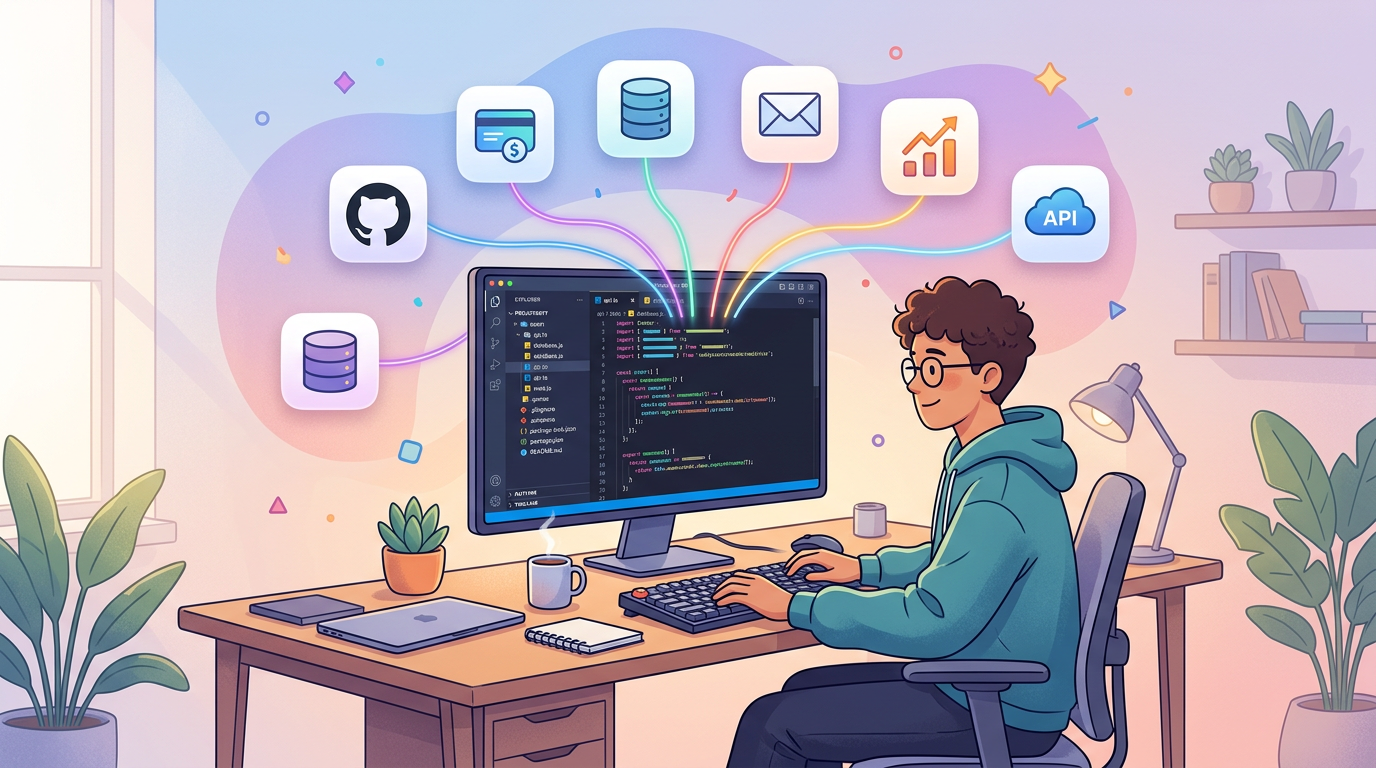
Developer with AI agent connecting to production services

Cursor MCP Tools: Give Your AI Coding Agent 10,000+ Real API Tools

· 7 min read
MCPBundles

Here's the thing nobody tells you about Cursor's agent mode: it's brilliant at working with code and completely blind to everything your code talks to.

Last week we were debugging a webhook handler. Cursor had the code open, understood the control flow, spotted a race condition in the retry logic. Genuinely impressive. Then we needed to know whether the bug was actually hitting production — were customers seeing duplicate charges? The agent that just did 15 minutes of sophisticated code analysis couldn't answer a basic factual question about our own Stripe data.

So we opened a browser tab, logged into Stripe, searched for the customer, scrolled through PaymentIntents, compared timestamps manually, went back to Cursor, and typed what we found. The AI had all the context and none of the data.

We got tired of being the copy-paste bridge between our IDE and our dashboards.

Developer using Cursor with MCP tools connected to production services

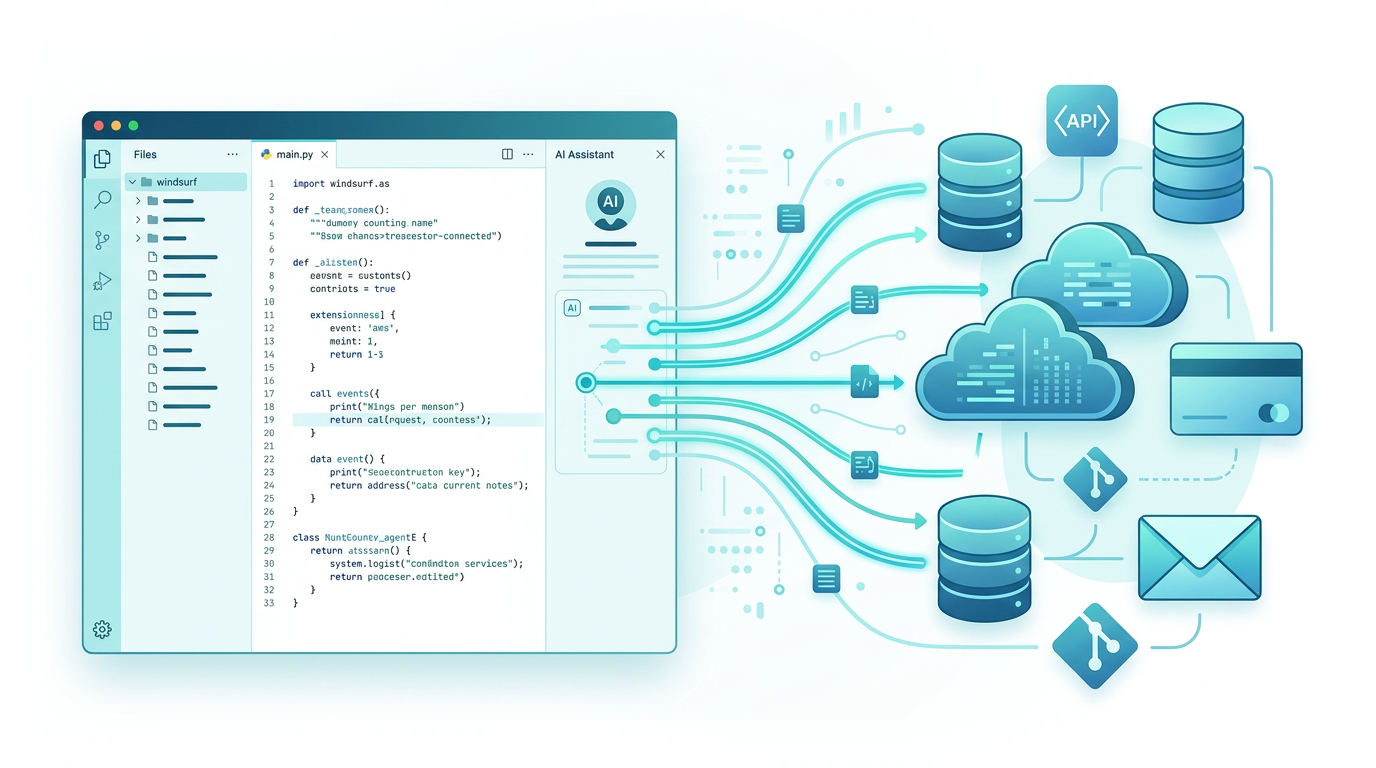
Windsurf MCP Tools: Connect Your AI Coding Agent to 10,000+ Tools

· 6 min read
MCPBundles

The thing that makes Windsurf different from other AI editors is that Cascade is already watching. Open a file, and it's reading it. Switch to a terminal, and it sees the output. Hit a linter error, and it's noticed before you have. You don't explain context to Cascade — it's already there.

But that awareness stops at the boundary of your machine. Cascade sees your Stripe integration code but not your Stripe data. It sees your HubSpot sync logic but not your actual contacts. It can tell you there's a bug in your webhook handler but not whether that bug is hitting customers right now.

We wanted Cascade's contextual awareness to extend past the filesystem. Not just "read the code" but "read the code, check the live data, and fix both at once."

Developer with AI agent connecting to production services

MCPBundles CLI: Give Your AI Coding Agent Access to 10,000+ Production Tools

· 6 min read
MCPBundles

MCPBundles has always worked as an MCP server. You add it to Claude Desktop, Cursor, ChatGPT, or any MCP-compatible client, and your AI gets access to Stripe, HubSpot, Postgres, PostHog, Gmail, and every other service you've connected — with real credentials, real permissions, and real data.

The MCPBundles CLI is an alternative way to access those same tools. Instead of configuring MCPBundles as a remote MCP server in your client, you install a command-line tool and authenticate with an API key. The AI agent discovers and calls your tools through shell commands — the same 10,000+ tools, the same credentials, the same workspace permissions.

pip install mcpbundles